
Sprite tutorial
This tutorial is made for RPG Maker MV, but it's possible that other versions work similarly (especially MZ). I won't teach you how to draw or how to use a drawing program, you should know that or investigate on your own. I will explain how sprites work in the engine and some tips in general.
Index
- Tile size
- Sprite sheet format
- Non walking animations
- One character per sheet
- Advanced: tall sprites
- Advanced: more frames
- Advanced: lighting and blend modes
- Advanced: sprites for transparent events
Tile size
Tile size is 48x48 pixels.
Your sprite can be any size you want, but you have to keep in mind the tile size will stay the same. This means that your character will have a hitbox of just one tile, a 48x48 square.
So, if your character is absurdly huge, it may look strange in certain contexts.
When sprites are two tiles tall (96 pixels) or lower they won't give you problems. But if you make them taller than that, some star tiles (the ones that you can walk under) may not render properly. There are workarounds (I do that!), I'll explain later in the advanced part.
When sprites are wider than 48, they will be centered in the tile, like this.
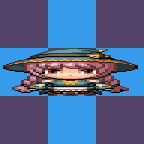
But as I said earlier, their hitbox is still that one tile in the middle. So, when you put two wide sprites together, this happens:
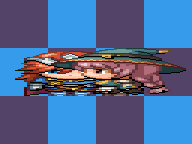
They will overlap. Have this in mind. You may use a wide NPC with transparent non-passable events on their sides to prevent your character from overlapping, for example. I just don't recommend making your protagonist too wide.
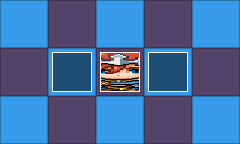
Also, if your sprite is less wide than 48 pixels, it will get centered horizontally as well (but not vertically).
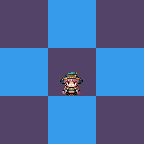
I recommend always testing when you're unsure of how a sprite will behave. As much as I explain, it may be easier to see for yourself in your game. You can always draw it poorly just to understand it first.
Sprite sheet format
This is important. It is necessary for sprite sheets to be formatted a certain way, the program cannot guess your character size and frames.
Let's take a look at the RTP characters (RTP means default assets). They're in your project folder / img / characters. I edited the background of this picture to explain it easily, but by default they have a transparent background (and that's how they should be, normally).
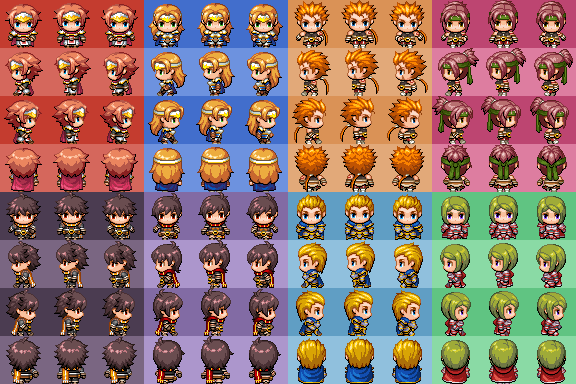
These characters are all 48x48. You can make them a different size, but let's start here.
As you can see, there are 8 different characters, 4 up and 4 down, each has their zone. Inside each character's zone, they all have the same layout too:
- 3 frames looking down
- 3 frames looking left
- 3 frames looking right
- 3 frames looking up
The center column (and second frame of each character) is the one that will show when your character isn't moving. All three will show when your character moves (the order is, 1-2-3-2, looping).
Knowing this, you can make your sprite sheet! What if you want them a different size? You just need to keep the proportion. Let's make calculations.
These RTP sprites are 48x48.
48 x 3 = 144. That's one character's zone width.
144 x 4 = 576. That's 4 characters' zones next to each other, making 4 columns of characters.
48 x 4 = 192. That's one character's zone height.
192 x 2 = 384. That's 2 characters' zones next to each other, making 2 rows of characters.
So, RTP default sprite sheet is 576 x 384 pixels.
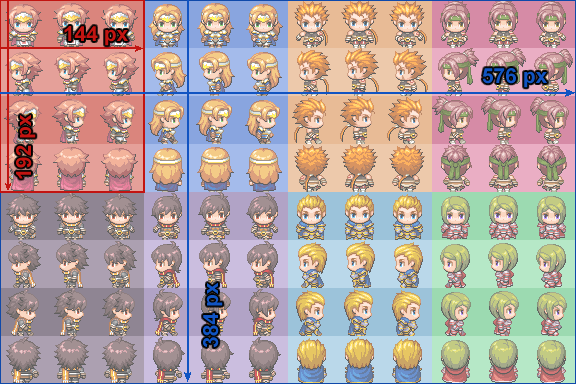
What if you want to make your characters 96 pixels tall and 48 wide? The width would stay
the same (576), but the height would be like this:
96 x 4 = 384. That's one zone's height.
384 x 2 = 768. That's the height of two zones, one on top of the other.
This is how that sprite sheet would look. Again, I colored the background so you can see the zones, but it should be transparent.
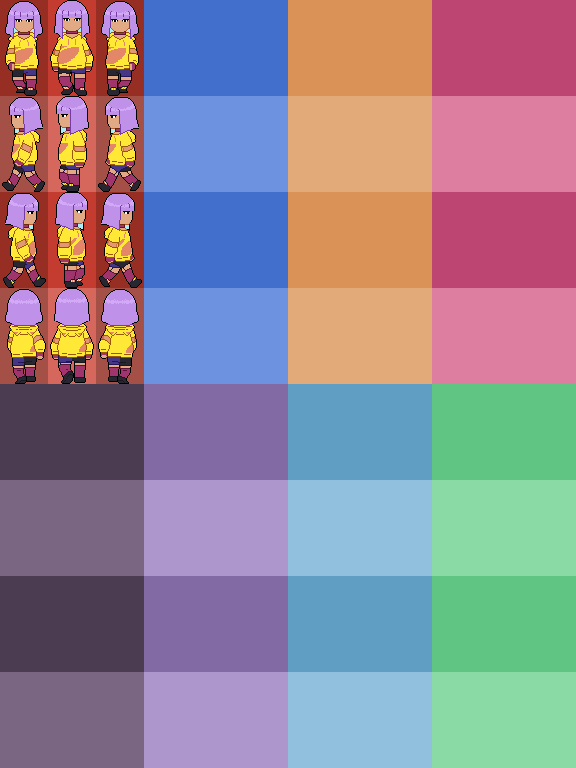
And yes, every character in the sheet must be the same size. If you only have one character with a certain size, you must still leave the appropriate room blank, like the previous image. Or you can do the other option, which I will explain later.
It is very important that you align your characters properly. If they're offset, they will look wrong. I can't teach you all digital drawing programs, but you must find one that lets you set custom grids. Set them using your character's size, and then center all frames in their correct place.
In my case, Clip Studio Paint won't let me set a grid that isn't a literal square, so I simply give my character a "zone" with a colored background, like this:

And then, when I format the sprite sheet in a different canvas, I only have to copy the character and the background together, which serves as a guide to align everything properly. When I'm done, I hide the backgrounds.
Everyone has their own way to go about this, so find whatever is most comfortable to you. I recommend drawing your character first and then formatting the sheet, so you can preview your animation before you export it.
Non walking animations
Walking is cool, but what about special animations? Unless you use a plugin, your animations will be a little limited. Mainly, to 4 frames at a time. This is actually how some RTP sprites work, let's take a look at !Chest.png
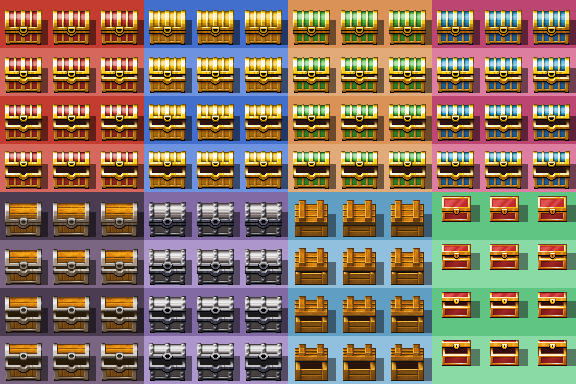
You see there are 8 "characters", right?
The way to animate them would be to simply select one of these "characters", and then make them "look"
down, then left, then right, then up for this opening animation to take place. Or reverse for
closing.
In fact, you see that all three frames of each direction is the same picture, right? If you were making your own sprite, you could set only the middle one and leave the others blank. This is because you don't need these sprites to "walk", so you won't need a walking animation. Make sure you don't make them walk, though. Only change the direction they're "looking" at.
See the next image where I highlighted which options those are. And remember to add waits between "turns" when you animate this way.
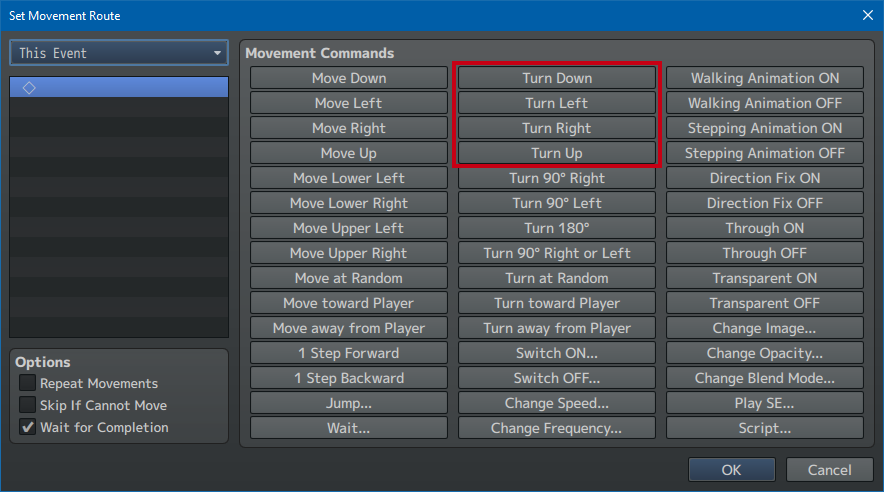
Technically, you can string different "characters" together to make an animation longer than 4 frames, since you can keep changing the "character" graphic from here or creating new event pages. And for the player, there's the "change actor images" command. But this is quite annoying and it's easier to use an animation plugin (like QSprite).
An important detail you may have noticed: this sheet has "!" at the start of its file name. This is because characters in RPG Maker, by default, are moved up by 6 pixels ("so they look better"). But in case you need objects to stay exactly placed on tiles, you need to add ! at the start of the file name.
What happens if you don't want characters moving a few pixels up by default? You can use my plugin BF_cosas, which has that option (this is what I do in my game, making that number 0). Using that you can avoid having to use "!" in filenames.
If you don't want to use a plugin, you can change a line in the main code of your project. In your project folder / js / rpg_objects.js, find line 6483.

Change that 6 into a 0, voilà.
It's not recommended to edit these files in this way, in case you mess up and you don't remember how it
was before, that's why people write and use plugins. But see, you have like three options to do the same
thing.
One character per sheet
It's a pain having to leave blank space in your sheet when you just have one character. Well, you don't need to! I tricked you into understanding basic sprite sheets. But you can definitely have one that only contains one character. RTP has some too. Look at !$Gate1.png
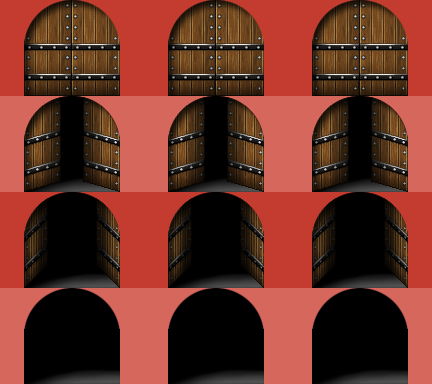
As you can see this also uses "!" just so it won't be moved 6 pixels up.
By adding $ to the beginning of the file name, your sheet will be treated like just one character. In this case, each row has 3 copies of the same frame because this is an object, but you can also make a normal walking sprite.
Advanced: tall sprites
What happens with sprites taller than two tiles (96 pixels)? This.
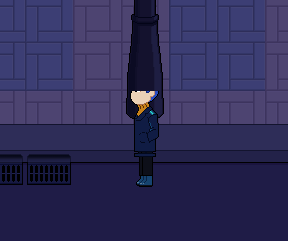
This is how this tile looks in the tileset editor:
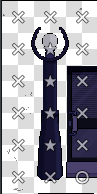
Because I want characters to be able to walk behind the second tile of the street lamp, I have to set it to star. Yet this is what makes sprites taller than two tiles look wrong: the star tile is being drawn on top of the sprite, as it "should", without considering that maybe it shouldn't when your character is in front of it.
There are (supposedly) plugins that fix this issue, but I never got them to work for me. You can do your own search, but if you don't mind eventing it, here's how, using regions:
-
Erase the star tile from your map. If your characters aren't taller than three tiles, you'll only have to do this with the one right on top of the X tile (impassable), the others will work correctly. But if they're taller, you'll have to do the same with the next tile.
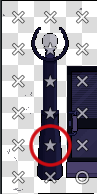
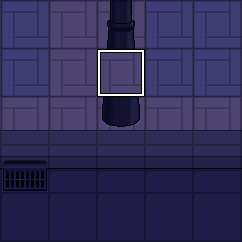
-
Create an event in this empty space and select the image that fits. In my case, it's in [Tileset B].
-
Now create another event somewhere else you have nothing going on, set to parallel, with no graphics and priority set to either below or above characters. It can also be a common event, but then remember to activate it somewhere. This event will be constantly checking if your character is in a certain region or not. This is a trick that can be useful for many things, and instead of regions you could register the character's X and Y on the map. But for now let's use regions.
-
Add a conditional branch, choose the last option (script) and write this:
$gamePlayer.regionId() === 8
Where 8 is the region number we're going to use, for example.
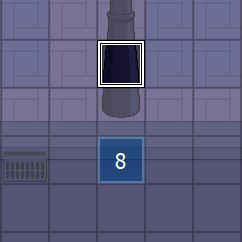
-
Now you have to decide what will happen when the player is on region 8. If you place region 8 in front of the street lamp, then you have to make it so, when the character is on region 8, the street lamp event has its priority as "below characters".
-
This is very easy to do with a switch or a variable. Let's call it "OBJ BEHIND". In the parallel event's conditional branch, add that when region 8 is stepped on, OBJ BEHIND is turned on. If region 8 isn't being stepped on ("else"), it's turned off.
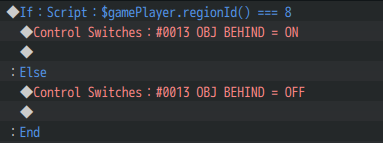
-
Go back to the street lamp event and make two pages. Since we have determined that OBJ BEHIND will happen when the switch gets turned on, then the default position is the opposite: the object is in front of the character. And this is made by making priority "above characters". The second page will have the condition "OBJ BEHIND" turned on, and will have priority "below characters".
-
If you notice that your graphic looks wrong while your character is walking near it, try to make this region bigger so it's not just in front of the street lamp, but also the tiles surrounding it. This way, you'll make sure that the street lamp has time to change while your character is approaching but not too close yet.
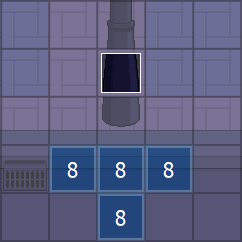
And with this logic you can achieve star tiles. It's a little cumbersome, but if you already have everything set up you can just copy and paste the events, changing only their graphics if necessary.
Additional advice:
-
The parallel event is checking if the player is stepping on the region constantly, several times per frame. This is most likely not necessary for something like this, so to prevent it to keep working more than needed, add a pause ("wait" command) at the end of the parallel event, at least 1 frame long. Don't make it too long, or this check will go slower than your character.
-
I like using regions, but another way is asking for the X and Y of the character and do something with that. You can also do this for things that aren't star tiles, just whatever you can come up with.
The X and Y of your character (separately) can be checked without scripts, going to Control Variables > Game Data > Character > Player > Map X / Map Y. This stores the number in a variable. But if you don't want to store this data in two variables, and then having to make another nested conditional branch... you can use a script again:
$gamePlayer.x === 5 && $gamePlayer.y === 10
If you write this on a conditional branch, it will activate if the character's X is 5 and at the same time its Y is 10. If it's only one of either, nothing will happen ("&&" in Javascript means "and"). There's even a shorter form:
$gamePlayer.pos(5,10)
If you write this on a conditional branch, it will activate when the position is 5 (X) and 10 (Y).
-
If you need to check the other party members' position, it's a little more tedious, but you can also do it:
$gamePlayer.followers().follower(0).regionId() === 8
This checks that the first follower is in region 8 (it starts counting from 0, the second one would be 1, the third would be 2...). You can also use .x, .y or .pos(), just like with the player.
So, to check that ANY characters, be it the player or the first follower (for example), but not necessarily both of them at the same time, are stepping on region 8, you have to write the script in a conditional branch like this:
$gamePlayer.regionId() === 8 || $gamePlayer.followers().follower(0).regionId() === 8
"||" in Javascript means "or". If one of the two things is true, whatever you programmed inside the branch will happen.
The exact logic your events will follow on these positions will depend on whatever you're doing, of course.
Advanced: more frames
If you need your characters or events using more than 3 frames when walking, or more than 4 when moving their directions manually, you need a plugin. I personally recommend QSprite (for MV). You can select the number of frames, how many frames per second, idle animations and special animations too.
However, even though you decide the logic of your sprite sheets with this plugin (as you can see in the next image), you still need every frame to be the same size and for them to be placed correctly next to each other. QSprite uses another program to interpret how many zones your sheets have. It's not super hard, but you need to be patient and carefully read the instructions.
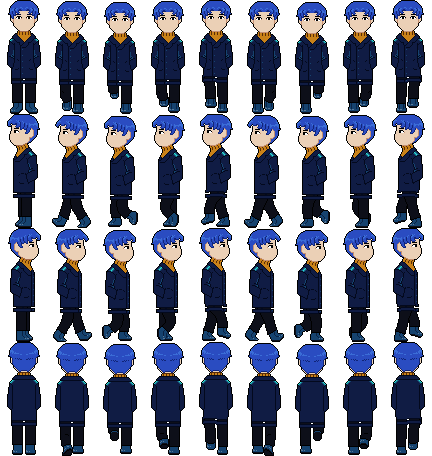
I can't just write a whole QSprite tutorial because it has too many features, and I don't even use all of them. But I recommend it. It sometimes has unexpected bugs that need you to work around a little, but even with that it's the best sprite plugin that exists for MV (that I know, and I assure you I've investigated).
I also recommend drawing less than 8 frames, because this was a pain to draw. But hey, you do you.
Advanced: lighting and blend modes
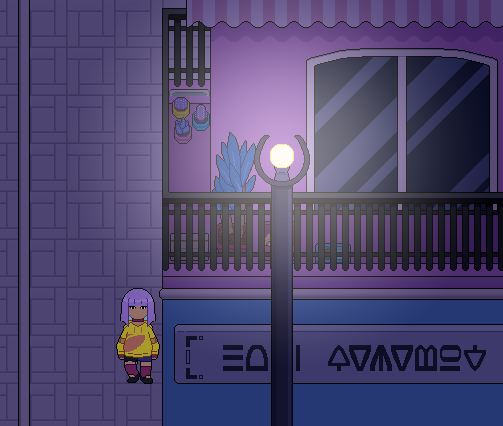
I put this in the advanced area but it's actually very simple. This is the way I add light to my street lamps: it's not a plugin, they're just events. I learned this trick from the old official forums (that are closed now) user JohnDoeGames.
First thing I did was to take a screenshot of the street lamp in my game, and then in my image editor I tried different ways of drawing light until I liked one. The one I liked used a layer in this blend mode called "Add (glow)" in Clip Studio Paint.
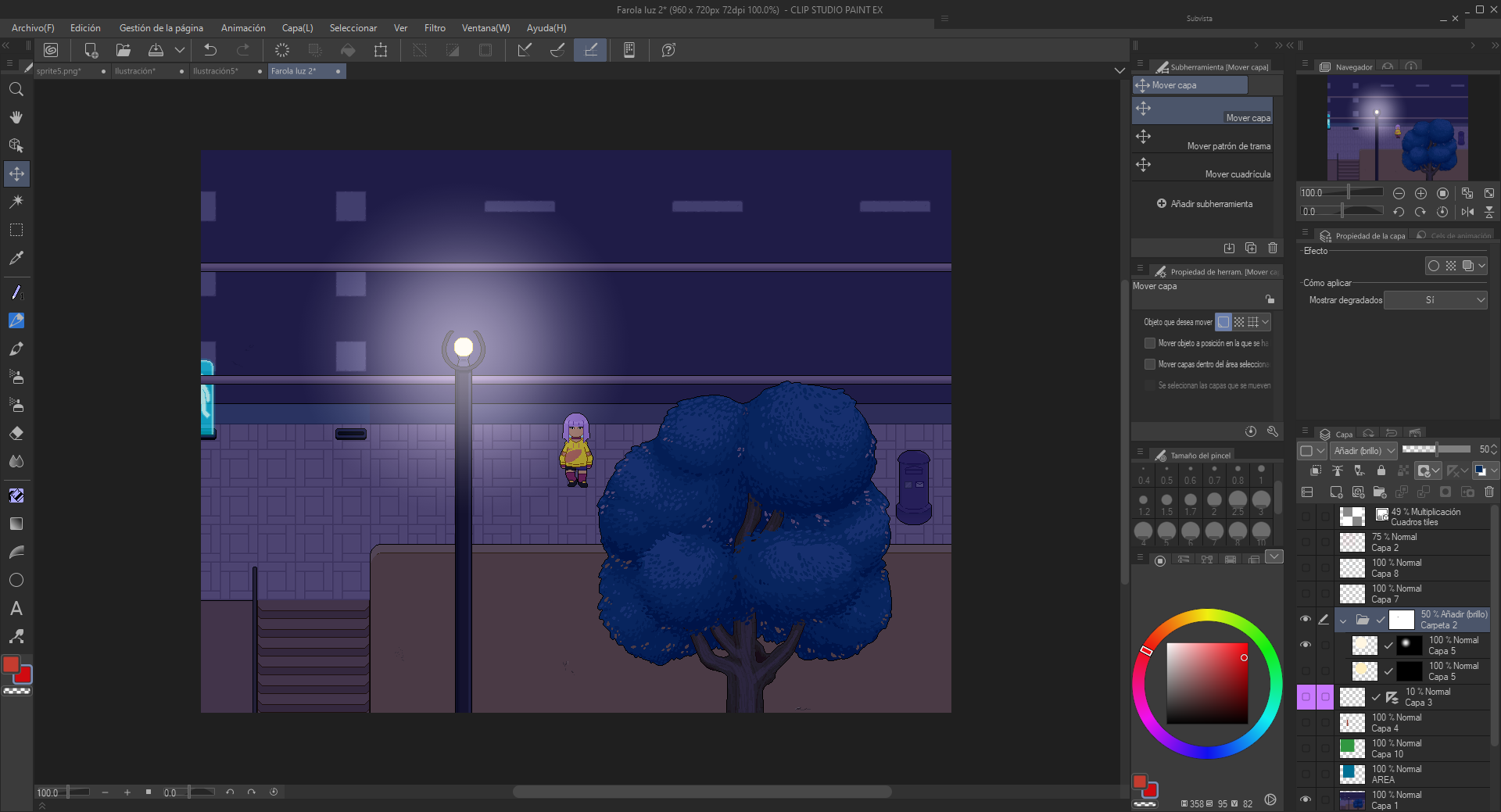
Now the trick lies in remembering that sprites get centered horizontally and they get placed from the bottom. When you're drawing your sprite, if you have your game's screenshot as a background and you align everything to the 48x48 grid, it will work.
And then you just have to make a sprite sheet like I explained before, leaving blank space. Since you only need one frame here, the easiest way is to multiply the width by 3 and the height by 4, and save the image like that (assuming your frame stayed in a corner).

Going back to RPG Maker, you only have to place your sprite, set it as "above characters", and add "custom autonomous movement". Remember to set the highest speed and frequency. And then in route you only have to add "Blend mode". There you can choose between normal, additive, multiply or screen. In my case, additive is the exact same as add (glow) in Clip Studio, so I select that one. Remember to uncheck "repeat movements" and that's it.
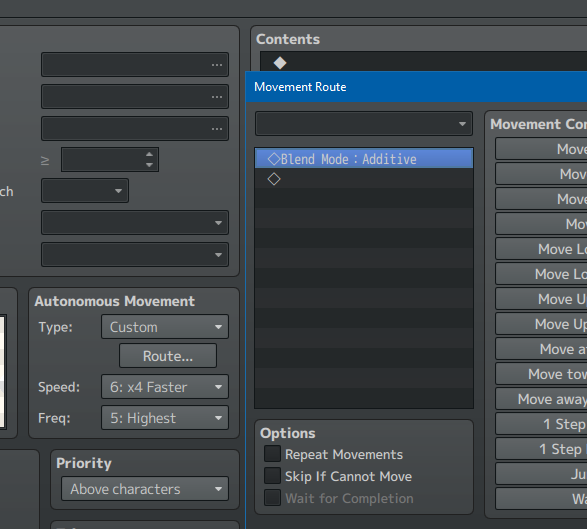
What happens if you need it to move on loop? Then it would be best to apply this transformation from a different event, since "set movement route" works for any event on the map. Make an automatic event that does this and then use "erase event".
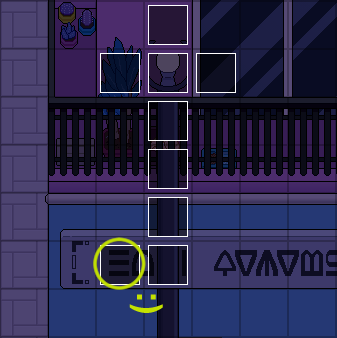
By the way, I had some trouble with my street lamps because I couldn't place them literally below the lightbulb, since on certain maps I use events just to paint pieces of the street lamp due to the layer limits on tiles.
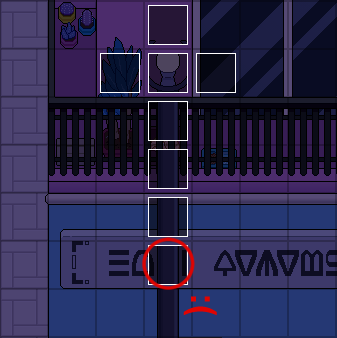
But this is easy to fix... by placing the light event to the left and editing the sprite so it has blank space to its left that makes up for this deviation. Remember that sprites get centered horizontally on the tile you place them, having this in mind you can draw almost whatever you want.
Advanced: sprites for transparent events
This isn't hard either, and again I didn't think of it first, I took this advice from Yanfly.
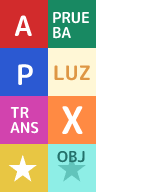
Basically, I use this file named $eventos.png with a few squares with text on them. If I need a transparent automatic event in the middle of a map, but I want to stop forgetting which one is which (since transparent events pile up easily), I use the A icon (if it's parallel, the P icon, if it's transfer, the TRANS icon, if it's the one for my star tiles, the star icon...).
To make sure the icon is never visible in game, I only have to keep this first page of the event (the one that has the graphic) blank, then make a new page, the real one, with its actual contents and no graphic. Neither of them has any condition to activate, so the page with the graphic will never appear in game, but you will see it in the editor.
It has a setback, which is that when you open the event to edit it, it will always open this useless page. But it's not so bad, especially if your events normally have more than one page that you're gonna have to select each time anyway.
The icons you use are for you to decide, you can use mine or make up some for yourself.
And that's it for the sprite tutorial. If I learn something new, I may add it. It's also possible that I made a mistake somewhere, in which case please tell me. But I hope it was helpful. And if you want to thank me... you can always donate, or play my game, which is free.